Setting up approvals will allow account administrators to approve each order that is submitted through the storefront. This is a feature often used when orders are billed to the organization.
To set up order approvals, reach out to your account manager with your request. This feature may only be enabled by your account manager.
We highly recommend turning on order notifications when using the order approval feature. Account administrators will be notified via email when an order has been submitted. Order notifications help you stay on top of order approvals.
Once the order approval feature has been enabled, new orders will be flagged with an orange label reading "Pending approval".
.png)
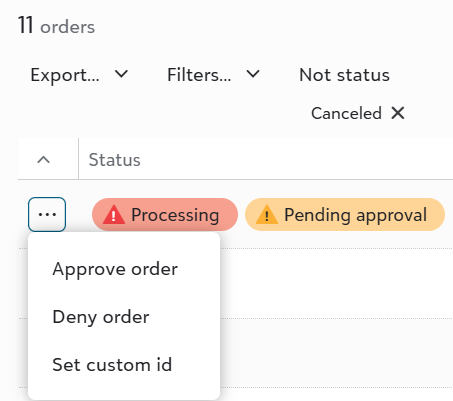
To approve or a deny an order, click on the three dots next to the left of the order. Then select either "Approve order" or "Deny order".
.png)
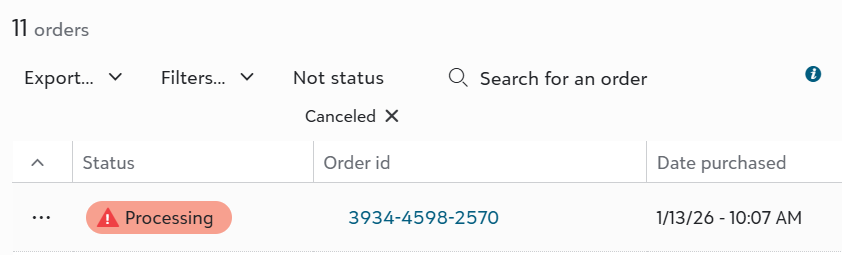
If the order is approved, the order status will update to "Processing".
.png)
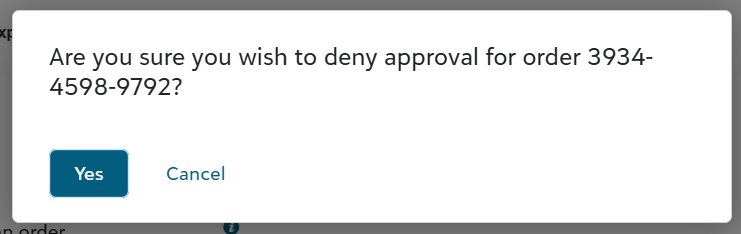
If the order is denied, you will be asked to confirm your choice.
.png)
If the order denial is confirmed, the order status will update to "Canceled" and "Approval denied".
.png)
To remove this feature from your account, please reach out to your account manager.
